
A practical typing guide
How to Type Telugu on a Computer
Write Telugu with the keyboard you already know. Start in your browser, choose the right words, and take your text into Word or another document.
Open the typing toolType Telugu with an English keyboard
To type Telugu on a computer, enter the sounds of Telugu words with English letters. The browser editor offers Telugu spellings for each word. You choose a suggestion, then copy the finished text wherever you need it. This is phonetic typing: an English sentence will not be translated into Telugu.
- Open the Telugu typing tool. Keep Telugu selected as the output language and click the text area. Your physical keyboard can stay in English.
- Type a word as it sounds. Enter
namaskaram, wait for suggestions, then choose నమస్కారం. The first suggestion is a starting point; check that it is the word you intended. - Keep writing. Space confirms the highlighted suggestion and adds a space. The up and down arrows select another candidate. Enter confirms the word and adds a new line.
- Review as you go. Click in the text to edit. Use Undo, or Ctrl+Z on Windows / Cmd+Z on Mac, to undo a change.
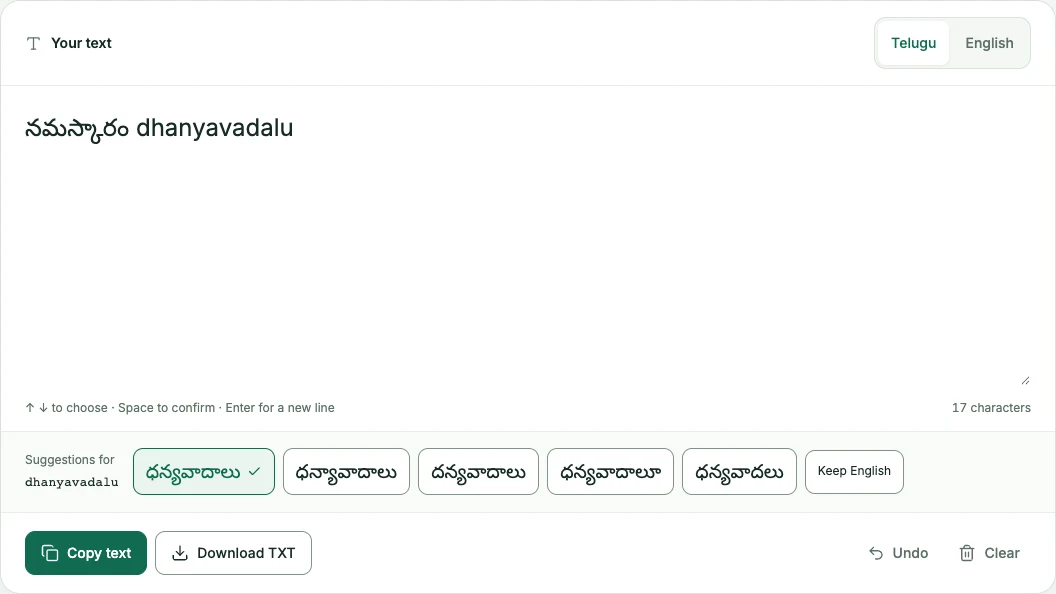
Practise with a short Telugu note
Start with a greeting, an English name and a closing. This small example lets you check word selection, mode switching and line breaks before writing a longer document.
ధన్యవాదాలు
- In Telugu mode, type
namaskaram. Select నమస్కారం, then add a space. - Switch to English, type
Anu,, and press Enter. The name and comma stay as entered. - Switch back to Telugu, type
dhanyavadalu, and select ధన్యవాదాలు. - Check both lines, then choose Copy text. You can now practise pasting the note into a document.
The examples use namaskaram for a greeting and dhanyavadalu for thanks. Names can have several spellings, so leaving Anu in English is a deliberate choice. For your own writing, review names and wording before sharing.
How to type Telugu in Microsoft Word
For Telugu typing in Word with this tool, prepare the text in your browser first, then paste it into Word. The website does not install a Word add-in or change your computer’s keyboard settings.
- Select Copy text in the editor and wait for the “Copied” feedback.
- Open your Word document and place the cursor where the note belongs.
- Paste with Ctrl+V on Windows or Cmd+V on Mac. You can also use Word’s Paste command.
- Check the greeting, English name and line break. Adjust the font, size and paragraph spacing in Word, then save the document there.
The clipboard contains plain Unicode text, not a picture. The editor’s green interface and button styles are not copied. Word controls the pasted text’s appearance and offers paste formatting options, including Keep Text Only where available. You do not need to convert the text into a legacy Telugu font.
For a different appearance, compare free Telugu fonts with your own text, download a font from its official page and install it before choosing it in Word. To enter letters directly instead of using phonetic suggestions, try the Telugu InScript keyboard.
Starting a new document? Download DOCX creates an editable Word file directly from either editor. The Telugu in Microsoft Word guide covers this export, a sample document, font selection and typing directly inside Word.
Telugu typing on a laptop
The same browser workflow works with a laptop keyboard. No separate Telugu keyboard layout is required. Use the trackpad to choose a candidate, or keep the cursor in the editor and use the arrow keys followed by Space.
Keep the browser and your destination document open while moving between them. Copy the note before changing pages. If the screen feels crowded, you can close unrelated tabs or adjust browser zoom; check that suggestions remain readable. New suggestions need an internet connection even when Word itself is available offline.
For typing across desktop applications, a Windows input method is a separate option. Microsoft offers Telugu InScript and Phonetic keyboards; these change input inside your applications, while this website converts words only in its own editor. Learn physical key positions with the normal and Shift layout reference.
Keep English names, numbers and pasted text
Choose English mode before entering a name, website or email address that should stay unchanged. Switching modes affects new input and leaves existing Telugu in place. Numbers and emoji can be included in either mode.
Pasted paragraphs stay as pasted; they are not converted in one step. For a Roman word that represents Telugu pronunciation, switch back to Telugu, put the cursor in the word and choose Get suggestions. A trailing full stop stays in place when you select the Telugu word. While typing, press Space or Enter to confirm a suggestion after the full stop. URLs and email addresses stay unchanged. See the typing troubleshooting steps for details.
Save a TXT copy or a Word document
Download TXT saves telugu-text.txt as UTF-8 plain text with your line breaks. It is useful for keeping the words outside this browser tab. TXT does not store fonts, page layout, bold text or other document formatting.
Download DOCX creates a separate editable document with your paragraphs, blank lines and tabs. Open it in Word to adjust formatting and save further changes. Renaming a TXT file to DOCX does not turn it into a Word document. If you edit either saved copy later, those changes do not automatically update the browser editor.
Enable Save a draft on this device to restore your latest draft for up to 30 days after editing. Saving is off by default and stays within this browser profile. Check the save status, and download a copy or paste into a saved document for a separate backup.
Fix common Telugu typing and display problems
- Squares instead of letters: choose a font with Telugu support in the destination document. The website includes Noto Sans Telugu; other applications rely on their available fonts.
- Marks appear cut off: increase line spacing in Word and check the text again. Telugu letters and combining marks need enough vertical space.
- The wrong word appears: undo the conversion, place the cursor in the restored Roman word and choose Get suggestions. Adjust its spelling if the intended candidate is missing.
- Copy is unavailable: follow the editor’s manual-copy prompt and use Ctrl+C or Cmd+C, then paste into Word. Download TXT is another way to keep your writing.
- Suggestions fail: check Telugu output mode and your connection, then use Retry if shown. Your original text remains editable and available to copy or download.
Writing a message instead?
See how to type Telugu in WhatsApp for a phone and WhatsApp Web example. Return to the English to Telugu typing editor when you are ready to write.