
A practical typing guide
How to Type Telugu in WhatsApp
Prepare your Telugu message here, then paste it into the conversation you choose. You stay in control of the final message and when it is sent.
Open the typing toolTelugu typing in WhatsApp on your phone
To type Telugu in WhatsApp using this tool, write the message in your browser and copy the finished text into WhatsApp. Your phone keyboard supplies English letters; the editor turns Telugu pronunciation into Telugu spellings. It does not translate the meaning of English sentences.
- Open the Telugu typing tool in your phone’s browser. Tap the text area to bring up your keyboard. Keep Telugu selected as the output language.
- Type a Telugu word using English letters, such as
namaskaram. Wait for candidates, then tap నమస్కారం. Scroll within the suggestions if needed to see another choice. - Switch to English for names or words you want to keep as typed. Switch back to Telugu when you need more suggestions.
- Tap Copy text and check for “Copied”. If automatic copying is unavailable, follow the manual-copy prompt and use your phone’s text selection menu.
- Open WhatsApp and the intended conversation. Touch and hold its message field, choose Paste, and review the text before sending it yourself.
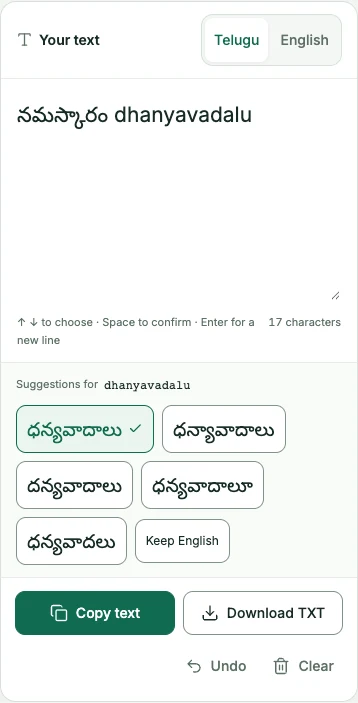
On an Android phone or iPhone, this workflow starts in the browser, not in WhatsApp’s keyboard settings. Keyboard and selection-menu labels can vary. The site does not install a phone keyboard or add a conversion button inside WhatsApp.
To type directly in different phone apps, see Telugu keyboard setup on Android and iPhone. That guide explains how a phone keyboard differs from this browser editor and how to keep Telugu and English together.
Try a Telugu message with a name and time
A short practice message helps you check mixed languages and line breaks before sending a real note. The greeting and thanks below are Telugu; Anu and the meeting time deliberately stay in English.
Meeting: 10:30
ధన్యవాదాలు
- In Telugu mode, type
namaskaramand tap నమస్కారం. Add a space after the greeting. - Choose English mode and type
Anu,. Add a new line, typeMeeting: 10:30, then add another new line. - Choose Telugu mode again, type
dhanyavadalu, and tap ధన్యవాదాలు. - Copy the result and paste it into the chosen conversation. Compare all three lines with your draft before sending.
If a name should also be written in Telugu, review its candidates separately instead of assuming the first spelling is correct. A number or emoji can sit alongside either language. The copied result is editable Unicode text, so you can still correct the name or time in WhatsApp.
How to type Telugu in WhatsApp Web
For Telugu typing in WhatsApp Web on a computer, keep the typing editor and your existing WhatsApp Web session in separate tabs. Prepare your message in the editor, then transfer it when the wording is ready.
- Write and review the message in the browser typing tool.
- Select Copy text, then switch to your WhatsApp Web tab.
- Click the message field in the correct conversation. Paste with Ctrl+V on Windows or Cmd+V on Mac.
- Check the recipient, Telugu spelling, English names and line breaks. Send only when the pasted message is ready.
This site does not connect to your WhatsApp account, read conversations or send messages. You do not need an account here to use the editor. Copying text here also does not send it to anyone; sending happens in WhatsApp.
Keep Telugu text and line breaks together
Build a multiline message in the editor before copying. Here, Enter confirms an available suggestion and inserts a new line; without a suggestion, it simply inserts a new line. On a phone, tapping a candidate first makes it easier to see which word is confirmed before starting the next line.
After pasting, review the message rather than assuming Enter behaves the same in both places. WhatsApp’s behavior depends on the app and its settings; see its Enter key help. If you are unsure whether a key sends a message, finish the line breaks in this editor first.
Before you switch apps
Confirm the last word and copy your message first. You can enable Save a draft on this device to restore your latest text for up to 30 days after editing. Check the save status before switching apps. With saving off, a reload, a closed tab or the phone removing the page from memory can lose the draft. Download TXT for a separate plain-text backup.
If the final word has ready suggestions, Copy text uses the highlighted candidate. If it is still loading or has failed, the Roman spelling is kept and the editor tells you. Review the result before sharing, or return to the editor and try that word again.
Make sure you are in the intended chat, then inspect the recipient and message before sending. The browser editor cannot check or recall a message sent through WhatsApp.
Fix common WhatsApp typing problems
- A word stays in English: choose Telugu output mode. For a pasted word or one restored with Undo, tap inside its Roman spelling and choose Get suggestions. You can leave a final full stop in place: choosing a suggestion replaces only the word. URLs and email addresses remain unchanged.
- The wrong Telugu spelling appears: undo the conversion and request suggestions again, or change the Roman spelling. Several candidates are alternatives; you only need to select one.
- Paste shows an older message: return to the editor, copy the current text again and check for confirmation. Copying something else in another app can replace the clipboard contents.
- Suggestions fail to load: check the connection and use Retry if shown. Keep a copy of the draft; see the typing troubleshooting steps for recovery options.
Send styled text as an image
For a greeting or short notice whose font appearance matters, create a Telugu text PNG, download it and choose that image in WhatsApp. Check the image and recipient before sending. An image keeps the visual style, but the words are not directly editable or searchable; include a plain-text version for copying and accessibility.
Working on a longer document?
Read the computer and Microsoft Word guide for document formatting and font troubleshooting. Use the English to Telugu typing editor to prepare your next message.